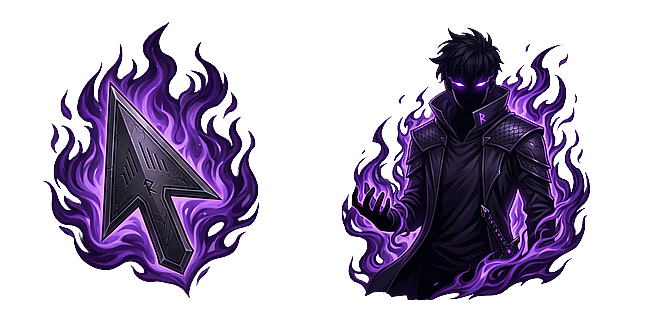
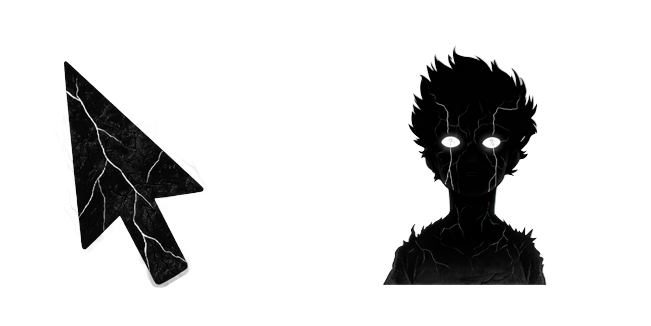
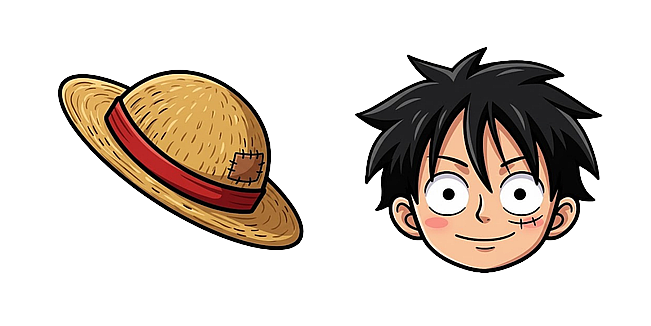
When you download a cursor set, you'll usually get two designs: a cursor and a pointer. People often use the words interchangeably, but they refer to two different states of your mouse. Understanding the difference helps you pick sets you'll actually enjoy and choose the right file formats.
The cursor (default arrow)
The cursor is what you see most of the time — the plain arrow that moves around the screen as you browse, read, and point at things. This is your everyday state, so it's the design you'll look at the longest. A good cursor is clear and easy to track without being distracting.
The pointer (the clicking state)
The pointer is the shape your mouse changes into when you hover over something clickable, like a link or a button. In the classic Windows look this is the little hand. In a Neon Cursor set, the pointer is a matching, themed design so the whole experience feels consistent — for example, an arrow wrapped in flames might switch to a character's face when you hover a link.
File formats you'll see
- .cur — a static Windows cursor file. Best for system-wide use on Windows.
- .ani — an animated Windows cursor file, used the same way as .cur but with motion.
- .png — a plain image of the design, handy for previews, Roblox, or your own projects.
- .gif — an animated image, often used to preview animated designs.
On Neon Cursor, most sets include the cursor, the matching pointer, PNG images, and Roblox-ready files, so you're covered whether you're using the browser extension, Windows, or a game.
Which one matters more?
Since you see the cursor far more often than the pointer, start by choosing a cursor design you like looking at. The pointer is the fun bonus that appears on hover. If you're deciding between a moving or still design, read Animated vs Static Cursors.
Ready to try one? See How to Change Your Mouse Cursor in Chrome.